Tracking
How to Set Up Conversion Tracking in Google Ads

Category: Tracking
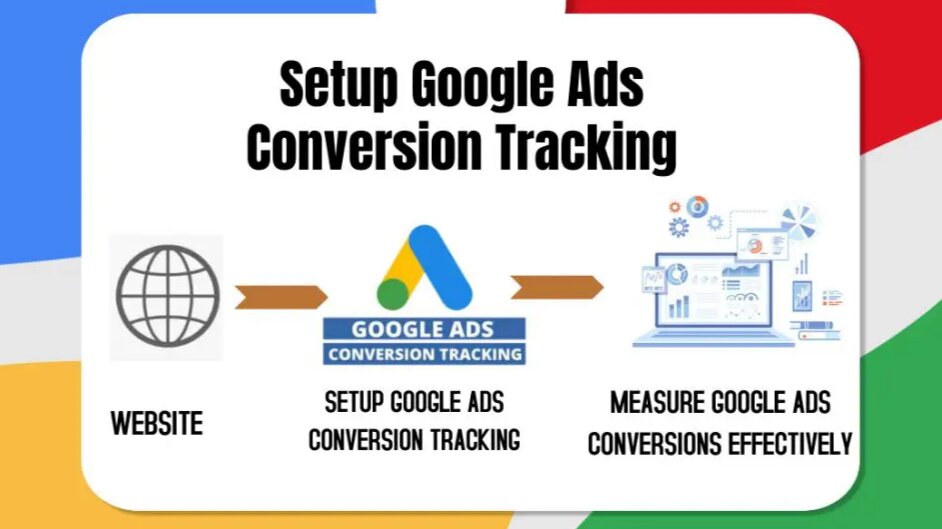
How to Set Up Conversion Tracking in Google Ads
Running ads without conversion tracking is like driving with your eyes closed. You may be getting clicks and impressions, but without proper tracking, you never really know which campaigns are generating leads, sales, or revenue.
Whether you’re running search ads, shopping campaigns, display ads, or YouTube ads, setting up conversion tracking in Google Ads is one of the most important steps for measuring performance and improving ROI.
At ScaleWithClicks, we’ve seen businesses waste thousands of rupees on campaigns simply because tracking was either missing or incorrectly configured. Proper tracking helps you understand customer behavior, optimize campaigns, and scale profitable ads with confidence.
In this guide, you’ll learn:
- What Google Ads conversion tracking is
- Why it matters
- Different types of conversions
- How to set up conversion tracking step-by-step
- How to verify if tracking is working
- Common mistakes to avoid
- Best practices for accurate data
What Is Conversion Tracking in Google Ads?
Google Ads conversion tracking is a feature that helps you track actions users take after clicking on your ad.
These actions can include:
- Form submissions
- Phone calls
- Purchases
- Newsletter signups
- App downloads
- Button clicks
- WhatsApp inquiries
- Appointment bookings
For example, if someone clicks on your ad and fills out your contact form, Google Ads records that as a conversion.
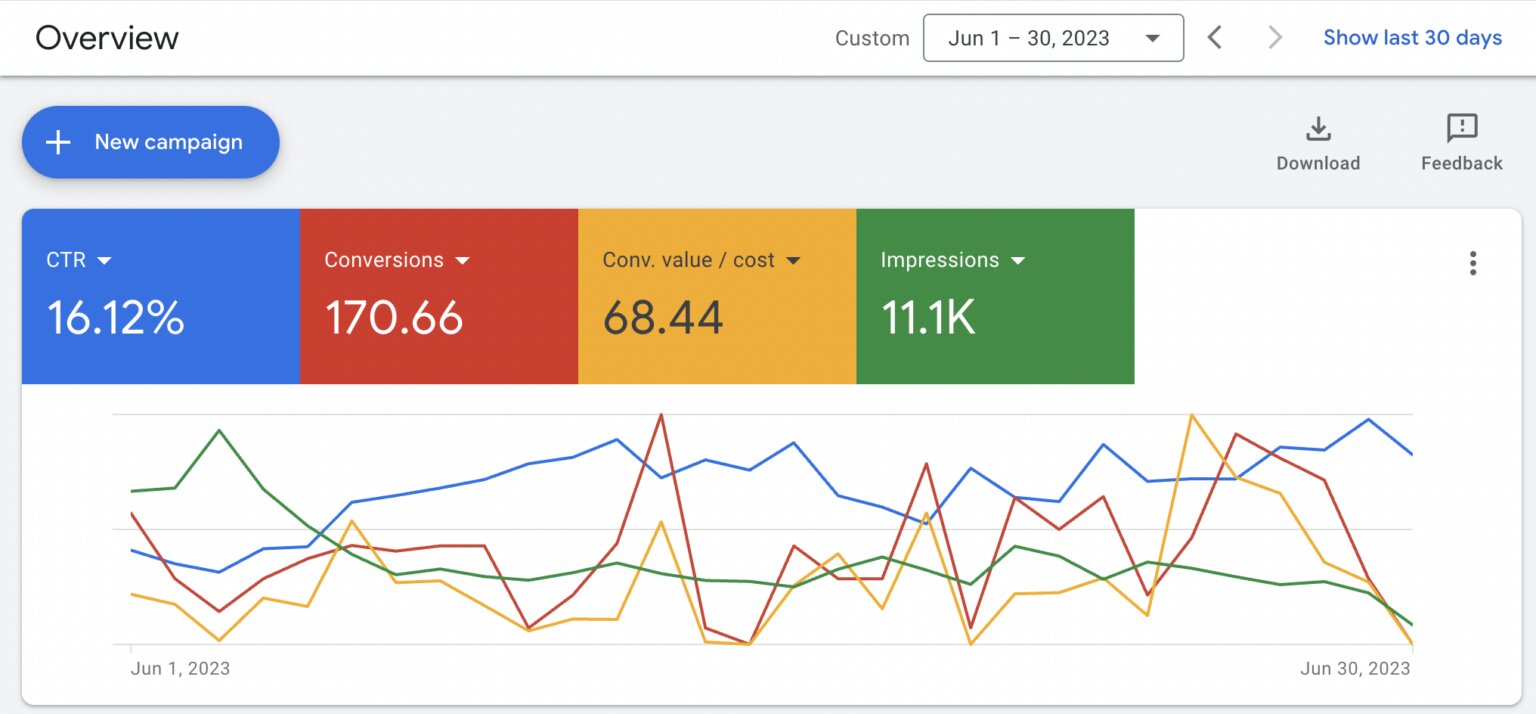
This data helps advertisers identify which keywords, ads, and campaigns are generating actual business results instead of just traffic.
Why Conversion Tracking Is Important
Without tracking, you’re only guessing.
Conversion tracking allows you to:
- Measure return on ad spend (ROAS)
- Optimize campaigns using real data
- Identify high-performing keywords
- Reduce wasted ad spend
- Improve bidding strategies
- Scale profitable campaigns faster
If you’re already investing in paid advertising, you should also read our guide on Performance Marketing Services to understand how data-driven advertising improves business growth.
Types of Google Ads Conversions
Before setting up tracking, it’s important to understand the different types of conversions available in Google Ads.
1. Website Conversions
Tracks actions on your website such as:
- Contact form submissions
- Purchases
- Leads
- Downloads
- Signups
This is the most commonly used conversion type.
2. Phone Call Conversions
Tracks calls from:
- Ads
- Website phone numbers
- Call extensions
This is extremely useful for local businesses and service providers.
3. App Conversions
Tracks installs and in-app actions for mobile applications.
4. Offline Conversions
Tracks actions that happen offline after a lead is generated online.
For example:
- Sales closed through CRM
- Offline purchases
- Consultation bookings
Step-by-Step Guide to Set Up Conversion Tracking in Google Ads
Let’s go through the complete setup process.
Step 1: Log Into Your Google Ads Account
Go to Google Ads
Sign in to your Google Ads account.
Step 2: Open Conversions Section
In your dashboard:
- Click Goals
- Select Conversions
- Click New Conversion Action
Step 3: Choose Conversion Type
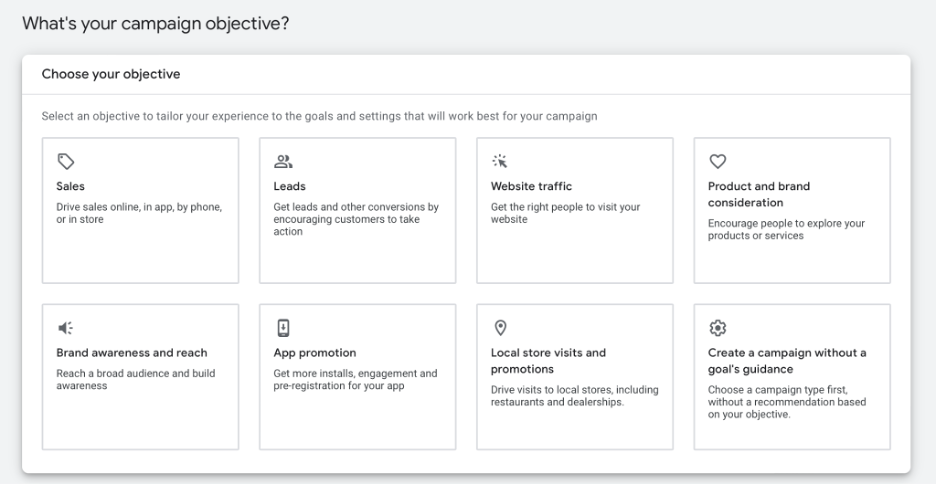
Google Ads will ask where you want to track conversions from.
Options include:
- Website
- App
- Phone Calls
- Import
For most businesses, choose Website.
Step 4: Enter Your Website URL
Add your website URL.
Example:
https://www.scalewithclicks.com
Google will scan your site and recommend possible conversion events.
Step 5: Create Conversion Action
Now configure your conversion settings.
Recommended Settings
Conversion Name
Use descriptive names like:
- Contact Form Submission
- Lead Form
- Purchase Completed
- WhatsApp Inquiry
Value
Choose one:
- Same value for every conversion
- Different values
- Don’t use value
For lead generation businesses, fixed values usually work best.
Count
- One → Best for leads
- Every → Best for eCommerce purchases
Click-Through Conversion Window
Recommended:
- 30 days for leads
- 90 days for high-ticket services
Attribution Model
Use:
- Data-Driven Attribution (recommended)
This gives better optimization insights.
Step 6: Install Google Tag
After creating the conversion action, Google provides:
- Google Tag
- Event Snippet
You can install them manually or through Google Tag Manager.
Method 1: Install Conversion Tracking Using Google Tag Manager
This is the easiest and most recommended method.
If you haven’t installed GTM yet, read our guide on Google Tag Manager Setup Services.
Step 1: Open Google Tag Manager
Visit Google Tag Manager
Select your container.
Step 2: Create a New Tag
- Click Tags
- Click New
- Select Google Ads Conversion Tracking
Step 3: Add Conversion ID and Label
Copy the:
- Conversion ID
- Conversion Label
from Google Ads and paste them into GTM.
Step 4: Set Trigger
Choose when the conversion should fire.
Examples:
- Form Submission
- Thank You Page Visit
- Button Click
- Purchase Success Page
Step 5: Publish Changes
Click:
- Submit
- Publish
Your tracking is now live.
Method 2: Install Conversion Tracking Manually
If you’re not using GTM, you can manually add the code to your website.
Google provides:
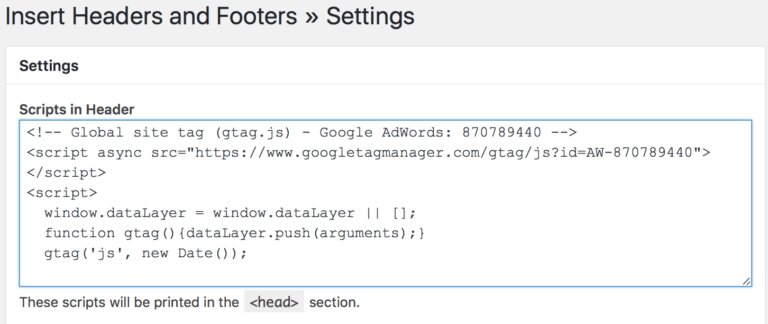
- Global Site Tag
- Event Snippet
The global tag goes inside the <head> section of every page.
The event snippet goes on the conversion page.
Example
<!-- Google tag (gtag.js) -->
<script async src="https://www.googletagmanager.com/gtag/js?id=AW-XXXXXXXXX"></script>

<script>
window.dataLayer = window.dataLayer || [];
function gtag(){dataLayer.push(arguments);}
gtag('js', new Date());

gtag('config', 'AW-XXXXXXXXX');
</script>
How to Verify Conversion Tracking
After setup, always test your tracking.
Here’s how.
Using Google Tag Assistant
Install the Chrome extension:
Google Tag Assistant
Check whether:
- Tags are firing properly
- No errors are present
- Conversion events are detected
Check Google Ads Status
Inside Google Ads:
- Go to Conversions
- Check the status column
You may see:
- No recent conversions
- Recording conversions
- Tag inactive
Usually, it takes a few hours for data to appear.
Test Conversion Yourself
Submit your own form or complete a test purchase.
Then check:
- GTM Preview Mode
- Google Ads Conversions
- Google Analytics 4
Common Conversion Tracking Mistakes
Many advertisers install tracking incorrectly.
Here are the most common issues.
1. Duplicate Conversion Tracking
Installing tracking through:
- GTM
- Website plugin
- Manual code
all at once can create duplicate conversions.
2. Wrong Trigger Setup
Example:
Tracking fires on button click instead of successful form submission.
This inflates conversion numbers.
3. Not Linking Google Ads with GA4
Connecting Google Ads with GA4 improves attribution and audience targeting.
You can also explore our Google Analytics Services for proper analytics implementation.
4. Ignoring Enhanced Conversions
Enhanced conversions improve tracking accuracy using first-party customer data.
This is especially useful after cookie restrictions and privacy updates.
5. Not Testing Tracking Properly
Always verify events before launching campaigns.
Even a small tracking issue can ruin campaign optimization.
Best Practices for Google Ads Conversion Tracking
Here are some professional recommendations we use at ScaleWithClicks.
Track High-Intent Actions Only
Don’t track unnecessary micro-conversions like:
- Scroll depth
- Time on page
- Generic clicks
Focus on real business outcomes.
Use Thank You Pages
The most reliable way to track leads is through dedicated thank you pages.
Example:
/thank-you
Enable Enhanced Conversions
This improves data quality and campaign optimization.
Especially important for:
- Lead generation
- eCommerce stores
- High-ticket services
Use Google Tag Manager
GTM makes tracking easier, cleaner, and scalable.
It also reduces dependency on developers.
Regularly Audit Tracking
Tracking can break due to:
- Website redesigns
- Plugin conflicts
- CMS updates
- Theme changes
Audit tracking every month.
Google Ads Conversion Tracking for eCommerce
For online stores, conversion tracking becomes even more important.
Track:
- Purchases
- Add to cart
- Checkout initiated
- Payment completed
If you run an eCommerce business, you should also explore our Google Ads Marketing Services.
Google Ads Conversion Tracking vs Google Analytics 4
Many people confuse Google Ads tracking with GA4 tracking.
Here’s the difference.
| Google Ads | Google Analytics 4 |
|---|---|
| Focused on ad conversions | Focused on user behavior |
| Helps optimize campaigns | Helps analyze traffic |
| Tracks ad ROI | Tracks overall website analytics |
| Used for bidding strategies | Used for reporting |
For best results, use both together.
Final Thoughts
Setting up conversion tracking correctly is the foundation of successful Google Ads campaigns.
Without proper tracking:
- You can’t optimize campaigns
- You waste ad budget
- Automated bidding performs poorly
- ROI becomes difficult to measure
Whether you're running lead generation campaigns or eCommerce ads, accurate conversion tracking helps you make smarter marketing decisions.
At Scale With Clicks, we help businesses implement advanced tracking systems that improve campaign performance, attribution accuracy, and advertising ROI.
If you want professional help with tracking setup, campaign optimization, or performance marketing, explore our Google Ads Management Services.
Frequently Asked Questions (FAQs)
How long does Google Ads conversion tracking take to work?
Usually, conversion tracking starts working within a few hours after installation. In some cases, it may take up to 24 hours for data to appear.
Can I set up Google Ads conversion tracking without Google Tag Manager?
Yes. You can manually install the Google Tag and event snippet directly on your website.
What is the best way to track form submissions?
The most reliable method is using a dedicated thank you page after successful form submission.
Why are my Google Ads conversions not showing?
Possible reasons include:
- Incorrect trigger setup
- Tag installation issues
- Inactive conversion action
- Ad blockers
- Recent implementation delay
Should I use GA4 or Google Ads conversion tracking?
You should use both together for better attribution and optimization.
What are enhanced conversions in Google Ads?
Enhanced conversions improve tracking accuracy using hashed first-party customer data while respecting privacy policies.
Is conversion tracking necessary for small businesses?
Yes. Even small businesses need tracking to measure leads, calls, and sales generated through ads.