Tracking
GA4 Setup Guide for Beginners (Step-by-Step)

Category: Tracking
GA4 Setup Guide for Beginners (Step-by-Step)
If you're running a website, ecommerce store, or lead generation business, understanding your visitors is one of the most important things you can do. That’s where Google Analytics 4 (GA4) comes in.
GA4 is Google’s latest analytics platform that helps you track website traffic, user behavior, conversions, events, purchases, and much more. Unlike Universal Analytics, GA4 is event-based and built to provide deeper insights across websites and apps.
In this beginner-friendly guide, you’ll learn how to set up GA4 step-by-step, connect it with your website, install tracking properly, and verify that everything is working correctly.
You’ll also learn how to connect GA4 with Google Ads and why conversion tracking matters for your business.
What is GA4?
Google Analytics 4 (GA4) is the latest version of Google Analytics designed to help businesses measure website and app performance more accurately.
With GA4, you can:
- Track users across devices
- Measure events and conversions
- Monitor ecommerce sales
- Understand user journeys
- Integrate with Google Ads
- Create custom reports
- Improve marketing ROI
If you're still using Universal Analytics, Google has officially replaced it with GA4.
Why GA4 is Important for Businesses
Whether you run an ecommerce store or a service-based business, GA4 gives you the data needed to make better marketing decisions.
Some major benefits include:
- Better conversion tracking
- Improved audience insights
- Advanced event tracking
- AI-powered predictive metrics
- Better integration with Google Ads
- Enhanced ecommerce reporting
If you’re planning to run paid campaigns, make sure your analytics setup is correct before spending money on ads.
You can also read our guide on How to Set Up Conversion Tracking in Google Ads to understand how GA4 and Google Ads work together.
Things You Need Before Setting Up GA4
Before starting, make sure you have:
- A Google account
- Access to your website backend
- Google Tag Manager access (recommended)
- Admin access to Google Analytics
If you don’t have GTM installed yet, check our Google Ads Conversion Tracking Service for professional setup support.
Step 1: Create a GA4 Property
Go to Google Analytics and sign in with your Google account.
Steps:
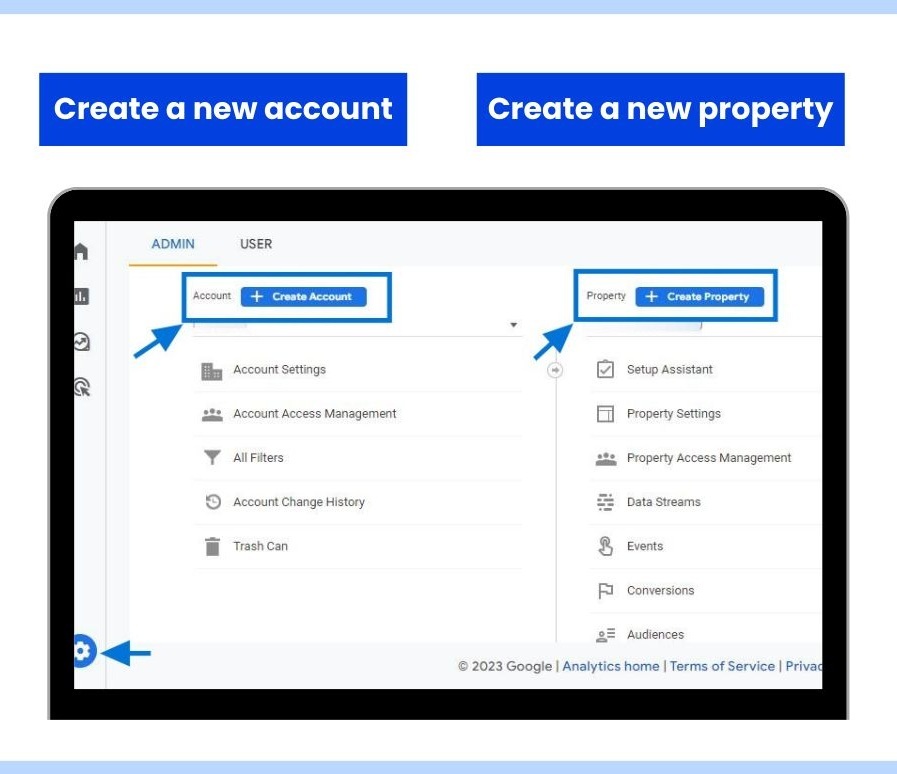
- Click Admin
- Under the Account column, click Create Account
- Enter your account name
- Click Next
- Enter your Property Name
- Select your timezone and currency
- Click Next
- Enter your business information
- Click Create
Your GA4 property is now created.
Step 2: Create a Data Stream
After creating the property, GA4 will ask you to create a data stream.
Steps:
- Select Web
- Enter your website URL
- Add your website name
- Enable:
- Enhanced Measurement
- Click Create Stream
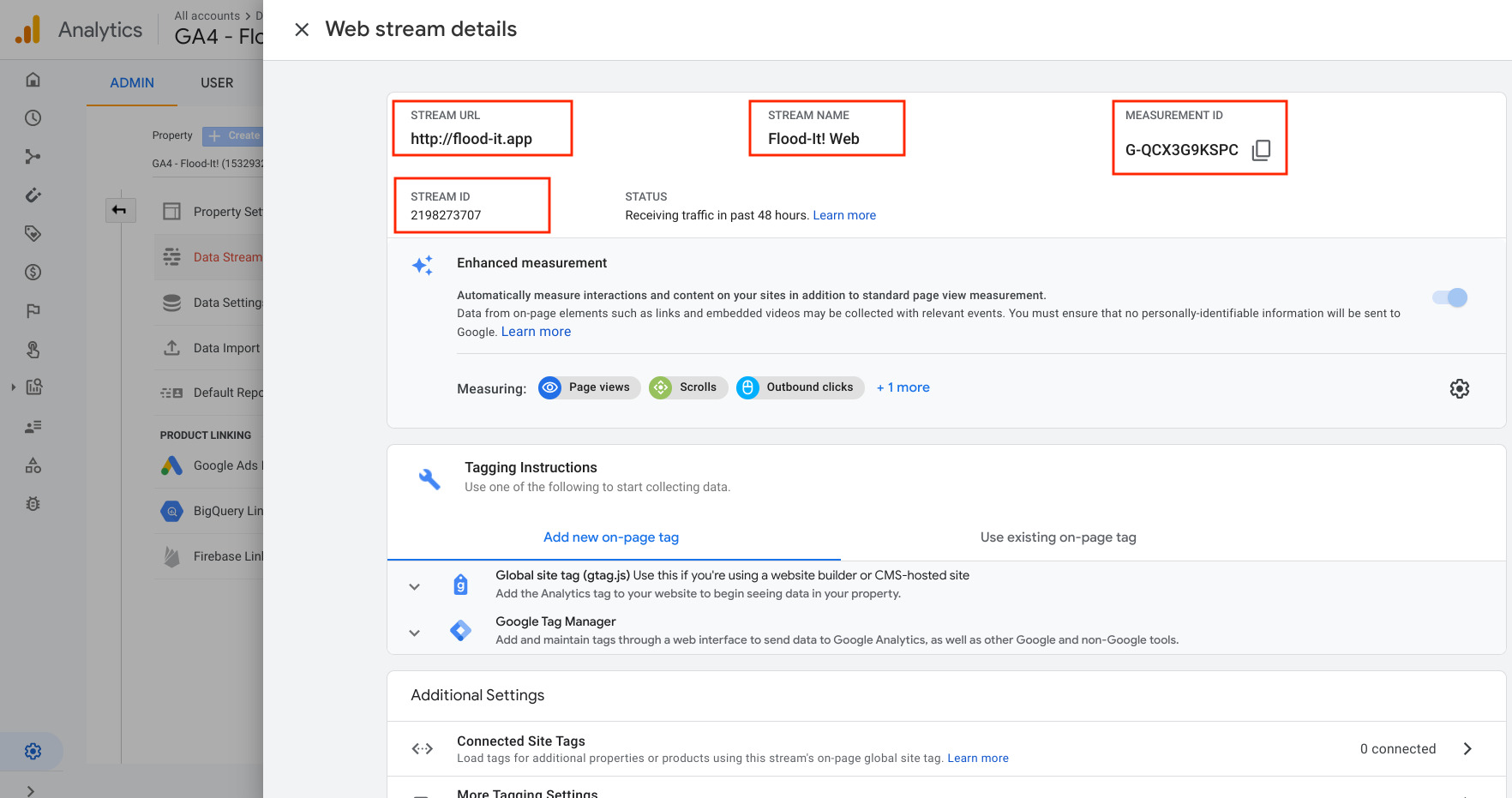
GA4 will now generate a Measurement ID that looks like this:
G-XXXXXXXXXX
This Measurement ID is required for tracking.
What is Enhanced Measurement?
Enhanced Measurement automatically tracks:
- Page views
- Scrolls
- Outbound clicks
- File downloads
- Video engagement
- Site search
This saves time because you don’t need to configure basic events manually.
Step 3: Install GA4 Using Google Tag Manager (Recommended)
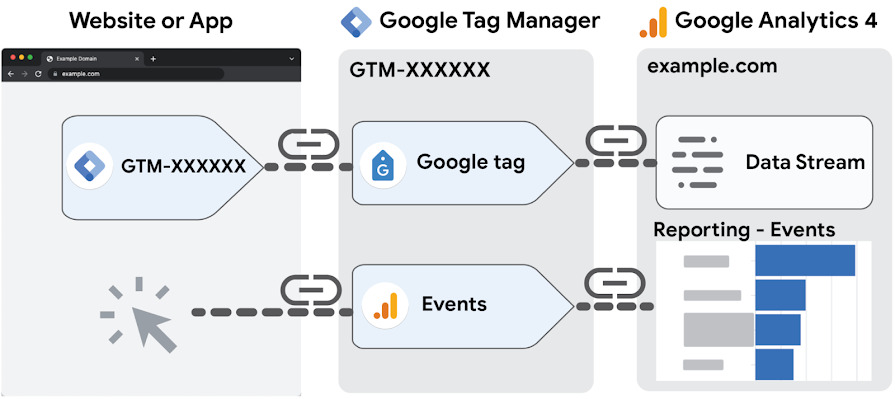
The best way to install GA4 is through Google Tag Manager (GTM).
If you don’t have GTM installed yet, first add GTM to your website.
You can learn more from our homepage: Scale With Clicks
Create a GA4 Configuration Tag
Steps:
- Open Google Tag Manager
- Click Tags
- Click New
- Choose:
- Tag Type → Google Tag
- Paste your Measurement ID
- Set Trigger:
- All Pages
- Click Save
Now publish the container.
Step 4: Verify GA4 Tracking
After publishing GTM, you need to verify whether tracking is working.
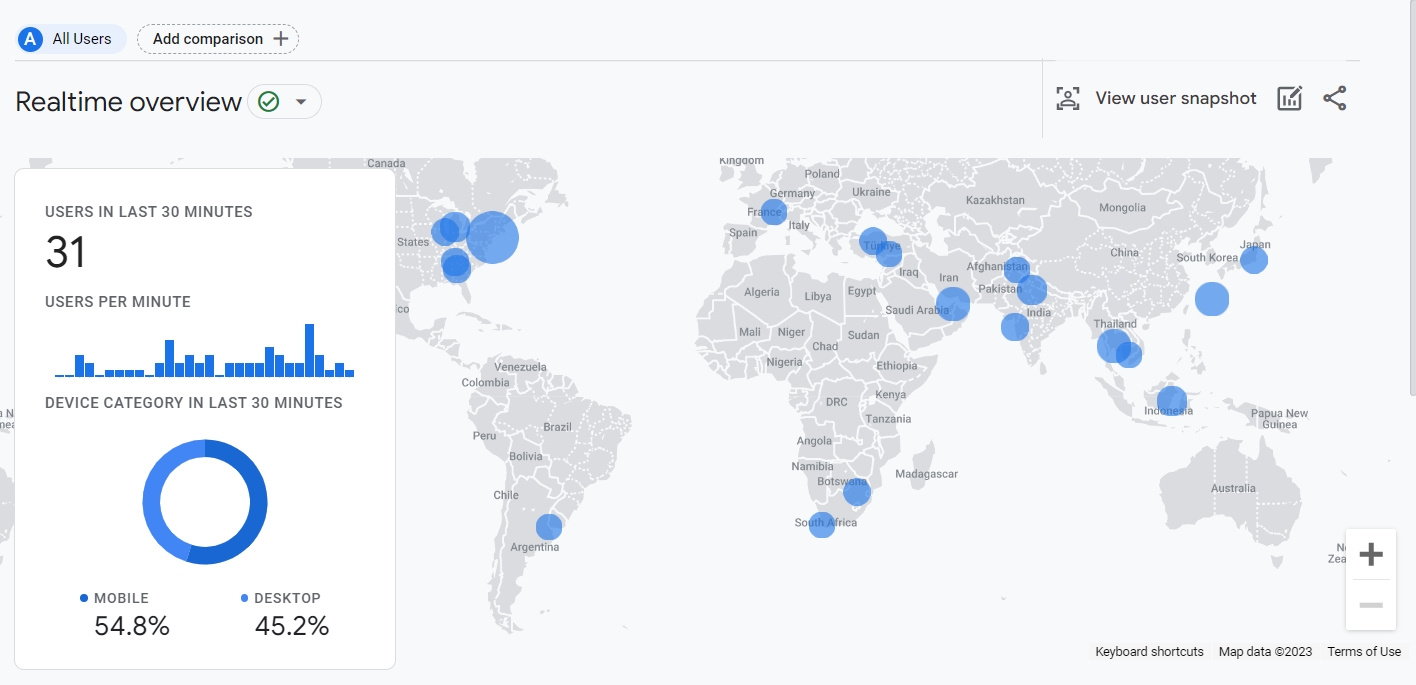
Method 1: Realtime Report
In GA4:
- Open Reports
- Click Realtime
- Visit your website in another tab
If setup is correct, your activity should appear instantly.
Method 2: DebugView
DebugView helps check event tracking in detail.
Steps:
- Install GTM Preview Mode
- Open GA4
- Go to:
- Admin → DebugView
- Visit your website
You should see events like:
- page_view
- session_start
- user_engagement
Step 5: Set Up Conversions in GA4
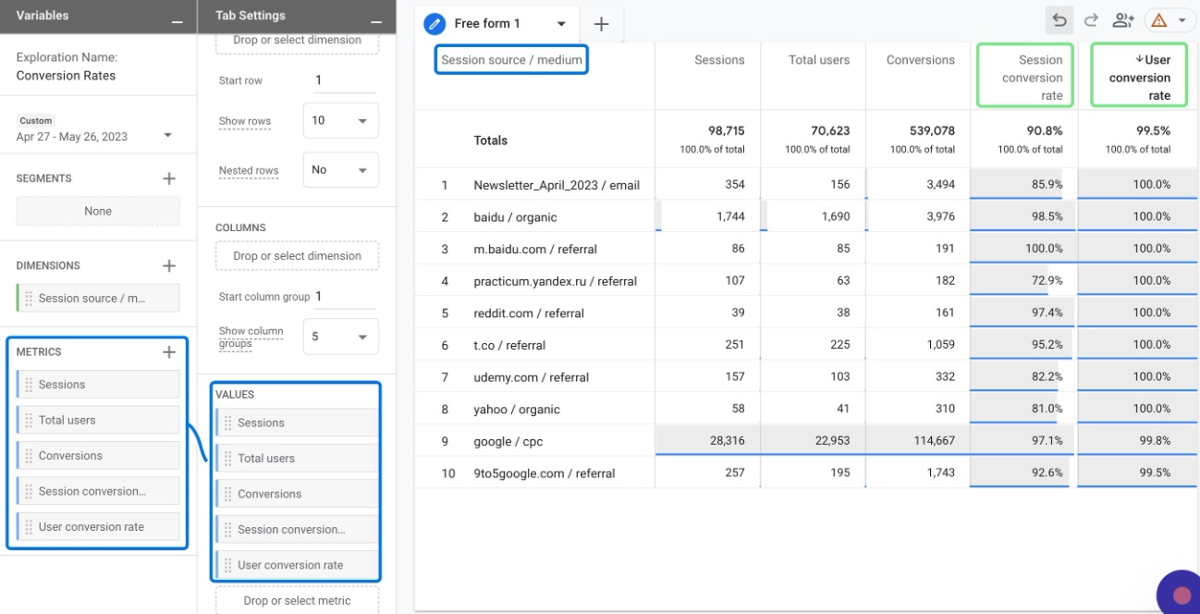
Conversions are actions you want users to complete on your website.
Examples:
- Form submissions
- Purchases
- Checkout
- Phone calls
- Lead generation
- Newsletter signups
How to Mark Events as Conversions
Steps:
- Go to Admin
- Click Events
- Find your event
- Toggle Mark as Conversion
That’s it.
Common GA4 Conversion Events
| Event Name | Purpose |
|---|---|
| purchase | Ecommerce order |
| generate_lead | Lead form submission |
| begin_checkout | Checkout started |
| add_to_cart | Product added to cart |
| contact_form_submit | Contact inquiry |
Step 6: Connect GA4 with Google Ads
Connecting GA4 with Google Ads allows you to:
- Import conversions
- Build remarketing audiences
- Track campaign performance
- Optimize ads using real data
You can also explore our Google Ads Agency Services if you need expert campaign management.
Steps to Link GA4 with Google Ads
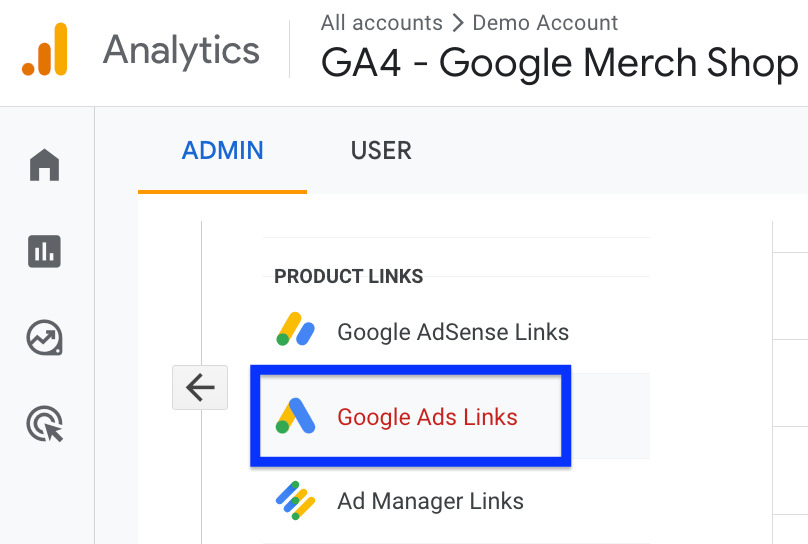
- Open GA4
- Go to Admin
- Click Google Ads Links
- Click Link
- Select your Google Ads account
- Enable:
- Personalized advertising
- Submit
Now your accounts are connected.
Step 7: Import GA4 Conversions into Google Ads
After linking accounts:
Steps:
- Open Google Ads
- Go to:
- Goals → Conversions
- Click:
- New Conversion Action
- Select:
- Import
- Choose:
- Google Analytics 4 Properties
- Select your conversion events
- Click:
- Import and Continue
Done.
Why Conversion Tracking Matters
Without conversion tracking, you’re basically running ads blindly.
Proper tracking helps you:
- Measure ROI
- Reduce wasted ad spend
- Improve campaign optimization
- Understand customer behavior
- Scale profitable campaigns
You can also read: Why Conversion Tracking is Important for Google Ads
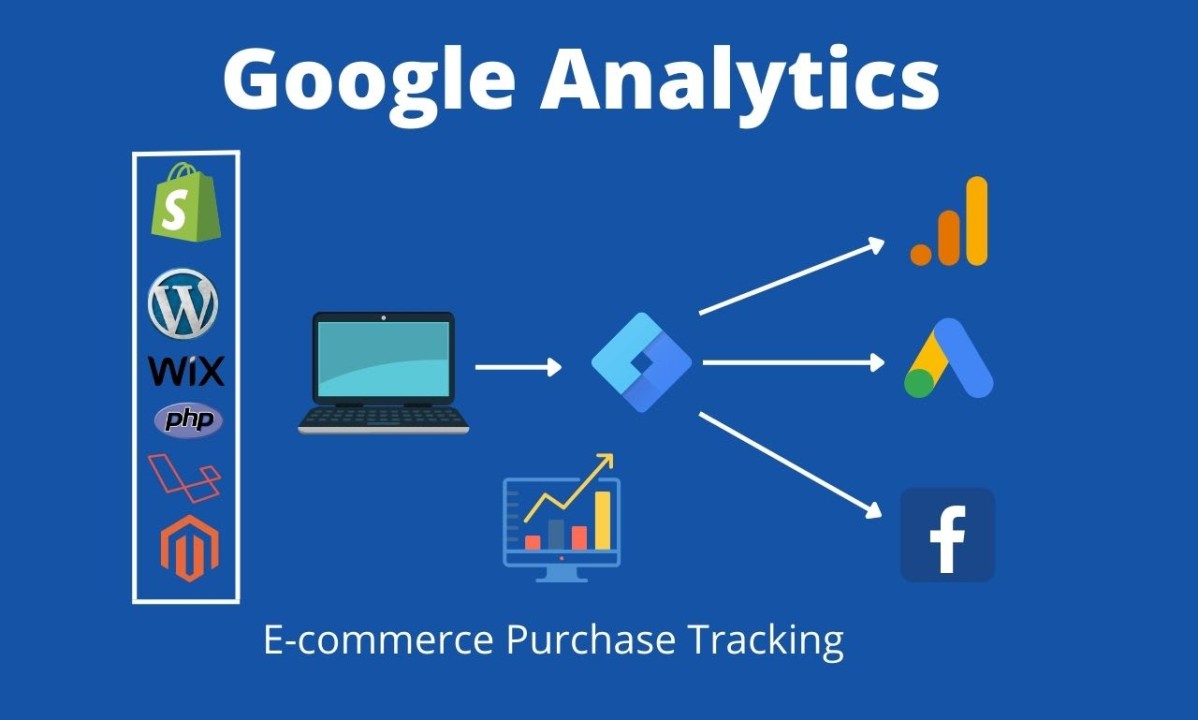
Step 8: Enable Enhanced Ecommerce Tracking
If you run an ecommerce website, enhanced ecommerce tracking is essential.
GA4 can track:
- Product views
- Add to cart
- Checkout
- Purchases
- Revenue
- Refunds
Platforms like Shopify and WooCommerce support GA4 integration.
For advanced ecommerce tracking setup, our Conversion Tracking Services can help ensure accurate data collection.
Common GA4 Setup Mistakes to Avoid
1. Installing Multiple GA4 Tags
This creates duplicate tracking and inaccurate data.
2. Not Testing Events
Always verify events using DebugView.
3. Wrong Trigger Configuration
Incorrect GTM triggers can break tracking.
4. Forgetting Conversion Setup
Events are not conversions unless marked manually.
5. Publishing GTM Without Testing
Always test before publishing changes.
GA4 Best Practices
Here are some best practices for beginners:
- Use Google Tag Manager
- Create meaningful event names
- Track important user actions
- Connect Google Ads
- Filter internal traffic
- Set up conversions correctly
- Monitor realtime reports regularly
How Long Does GA4 Take to Start Showing Data?
Realtime reports appear instantly.
However:
- Standard reports may take 24–48 hours
- Conversion data may take some time
- Attribution reports need more data collection
Final Thoughts
GA4 may seem confusing initially, but once configured properly, it becomes one of the most powerful tools for understanding your business performance.
A proper GA4 setup helps you make data-driven decisions, improve marketing campaigns, and track real business growth.
If you’re running Google Ads, ecommerce campaigns, or lead generation campaigns, accurate analytics setup is not optional anymore — it’s necessary.
If you need professional help with analytics, GTM, or conversion tracking, visit: Scale With Clicks
FAQs
Is GA4 free to use?
Yes, Google Analytics 4 is completely free for most businesses.
Can I install GA4 without Google Tag Manager?
Yes, you can install it directly using website code or plugins, but GTM is recommended for flexibility and easier management.
How do I know if GA4 is working?
Use:
- Realtime reports
- DebugView
- GTM Preview Mode
to verify tracking.
What is the difference between GA4 and Universal Analytics?
GA4 uses an event-based model, while Universal Analytics used session-based tracking.
GA4 also provides better cross-device tracking and machine learning insights.
Can I track ecommerce sales in GA4?
Yes. GA4 supports enhanced ecommerce tracking for platforms like Shopify and WooCommerce.
Should I connect GA4 with Google Ads?
Absolutely. Linking both platforms helps import conversions and optimize campaigns more effectively.
Why are my GA4 conversions not showing in Google Ads?
Possible reasons:
- Accounts not linked properly
- Conversion not marked correctly
- Delay in data processing
- Wrong event setup
You can troubleshoot using: How to Set Up Conversion Tracking in Google Ads
Does GA4 track users automatically?
GA4 automatically tracks basic events through Enhanced Measurement, but advanced tracking requires manual setup.