Tracking
Google Tag Manager Guide - Setup & Tracking for Beginners (2026)

Category: Tracking
Google Tag Manager, usually called GTM, can look confusing when you first open it.
You see tags, triggers, variables, data layers, containers, workspaces, and a lot of settings that seem to have nothing to do with each other. But once you understand how these pieces work together, GTM becomes one of the most useful tools for website tracking.
The basic idea is simple:
Something happens on your website → GTM detects it → a tag sends the information somewhere.
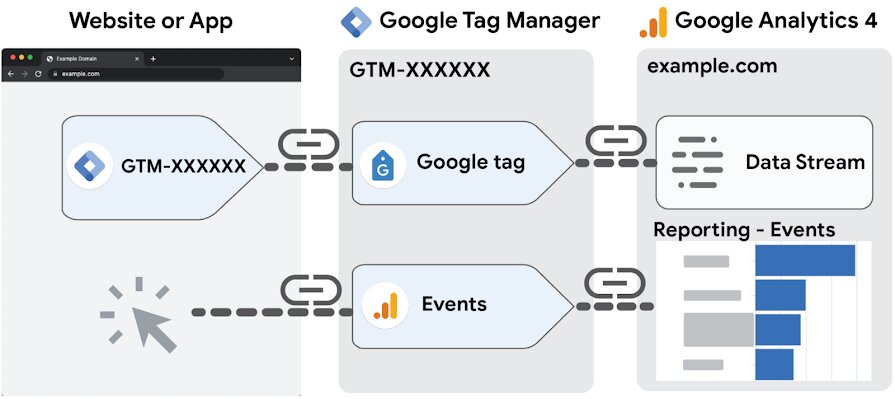
For example, someone clicks your phone number. GTM can detect that click and send an event to Google Analytics 4. The same event can also be used as a conversion for Google Ads.
This guide explains how to set up Google Tag Manager in 2026, how tags, triggers and variables work, and how beginners can start tracking the interactions that actually matter.
What Is Google Tag Manager?
Google Tag Manager (GTM) is a tag management system that allows you to add and manage tracking tags without repeatedly editing your website's code.
Instead of adding separate tracking scripts directly to your website every time you want to measure something, you install the GTM container and then manage many tracking configurations from the GTM interface.
Google describes GTM around four important components: tags, triggers, variables and the data layer.
For a lead-generation website, this could mean tracking:
- Contact form submissions
- Phone number clicks
- WhatsApp clicks
- Email clicks
- Book-a-call clicks
- CTA button clicks
- PDF downloads
- Important page views
- Google Ads conversions
- Meta Ads events
- GA4 events
This is particularly useful if you're running Google Ads, Meta Ads or other performance marketing campaigns, because traffic numbers alone don't tell you whether visitors are actually becoming leads.
If you are working on improving paid advertising performance, you can also explore our Google Ads services and conversion tracking services.
How Does Google Tag Manager Work?
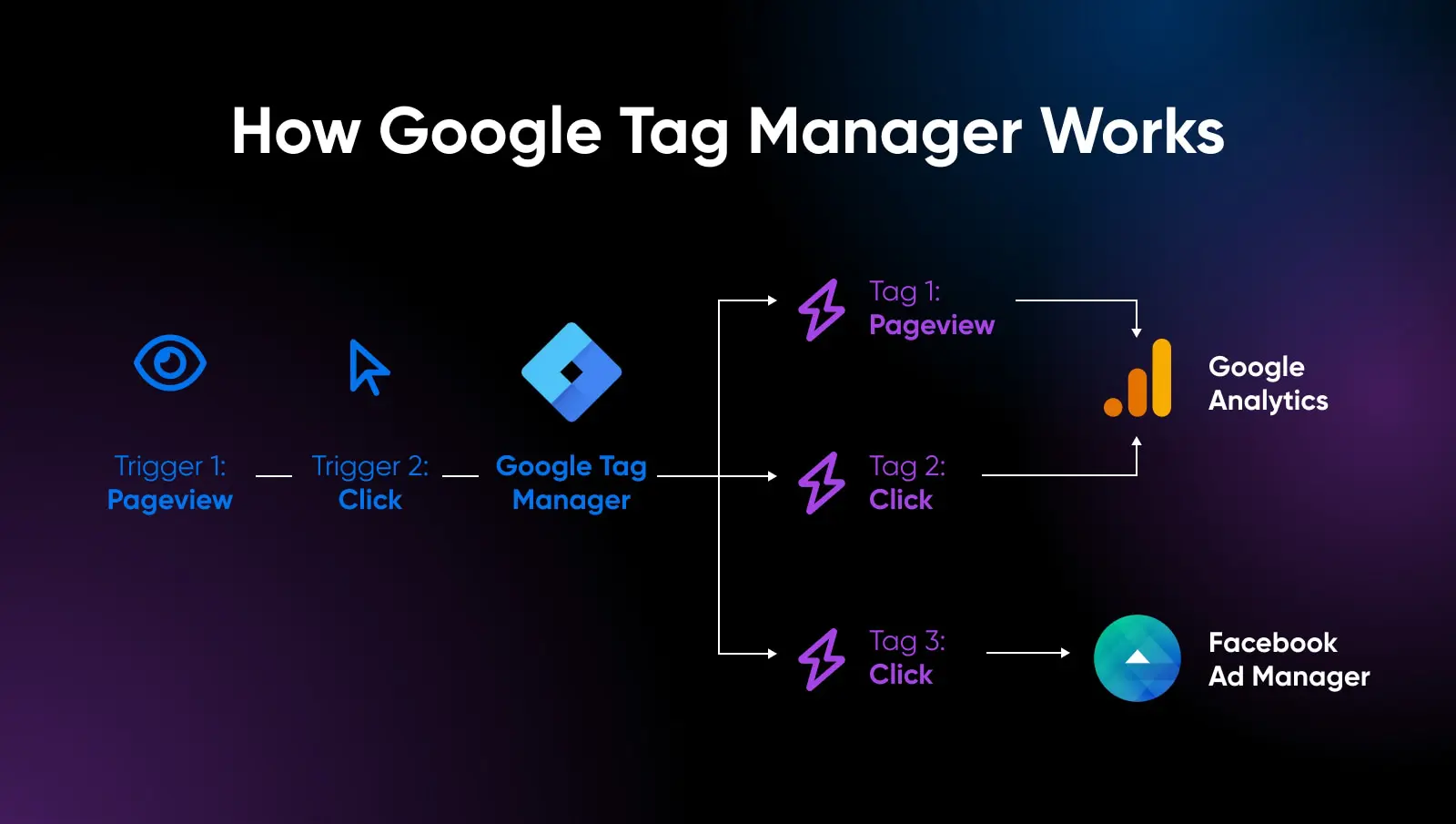
Think of GTM as a traffic controller between your website and marketing platforms.
There are three concepts you need to understand first:
1. Tags
A tag is what sends information to another platform.
Examples include:
- Google Analytics 4 event tag
- Google Ads conversion tag
- Google Ads remarketing tag
- Meta Pixel
- LinkedIn Insight Tag
- Custom HTML tag
For example, if someone submits your contact form, a GA4 Event tag could send:
generate_lead
to Google Analytics.
2. Triggers
A trigger tells GTM when a tag should fire.
Google defines triggers as conditions that listen for events such as page views, clicks and form submissions. Every tag needs a trigger before it can fire.
For example:
Trigger: Click on phone number
Tag: GA4 Event – Phone Click
Or:
Trigger: Contact form successfully submitted
Tag: GA4 Event – Generate Lead
3. Variables
A variable stores information that can change.
For example:
- Page URL
- Page title
- Click URL
- Click text
- Form ID
- Transaction ID
- Product price
Variables can also be used to determine whether a trigger should fire.
Once you understand Tag + Trigger + Variable, most of GTM becomes much easier.
Google Tag Manager Setup: Step by Step
Step 1: Create a GTM Account
Go to Google Tag Manager and sign in using your Google account.
Create an account and then create a container for your website.
For a website, choose:
Target platform → Web
A container is essentially the workspace where all your website tracking configurations live.
Step 2: Install Google Tag Manager on Your Website
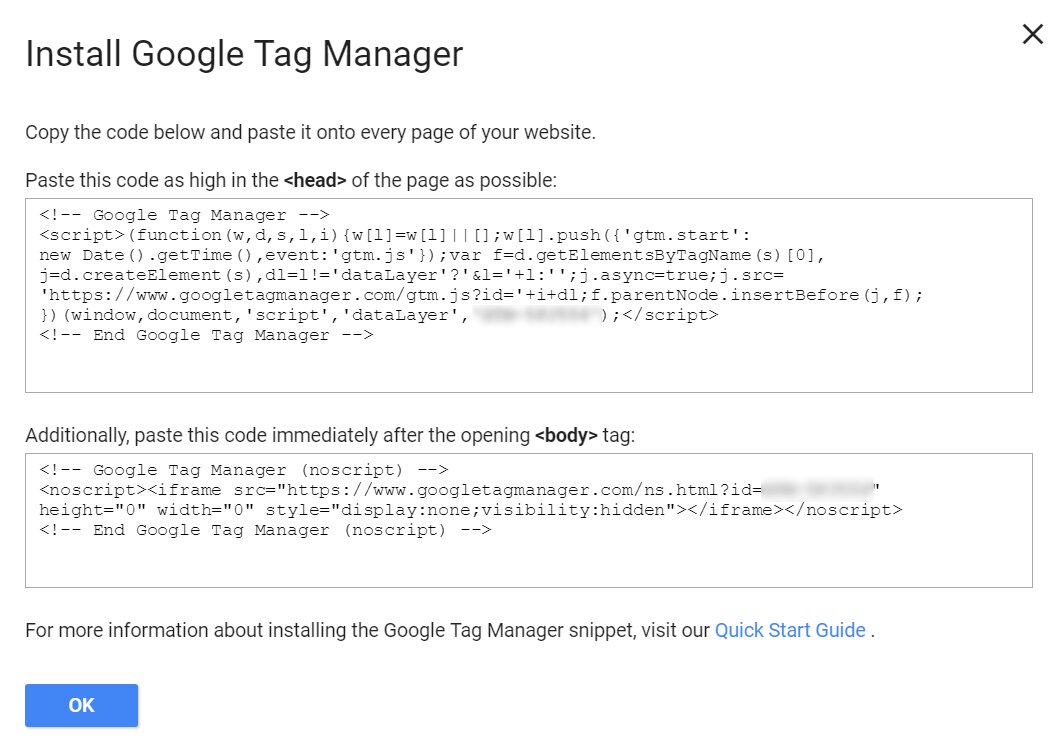
After creating the container, Google provides GTM installation code.
For a standard website, GTM requires code to be placed in the appropriate locations on your pages.
If you're using WordPress, Shopify, Wix or another website builder, the installation process can be different.
Once GTM is installed correctly, you can manage many tracking tags from Tag Manager rather than repeatedly modifying your website code.
Step 3: Create the Google Tag
If you're using GA4, the current setup uses the Google tag.
In GTM:
Tags → New → Google tag
Enter your Google tag ID and configure the appropriate trigger.
Google currently recommends using the Initialization – All Pages trigger when you want the Google tag to load before other tags.
The Google tag helps send website data to Google Analytics and other Google destinations.
Don't create multiple Google tags unnecessarily for the same website. Keep your setup organized so you know exactly which tag is responsible for what.
Step 4: Enable Built-In Variables
Go to:
Variables → Configure
Enable the variables you'll commonly need.
For click tracking, useful built-in variables include:
- Click URL
- Click Text
- Click Classes
- Click ID
- Page URL
- Page Path
- Page Hostname
These variables make it much easier to create specific triggers.
For example, instead of tracking every click on a page, you could create a trigger where:
Click URL contains wa.me
That would allow you to track WhatsApp clicks separately.
Step 5: Create Your First GA4 Event
Once your Google tag is configured, you can start creating individual events.
For example, let's say you want to track someone clicking your phone number.
Create:
Tag:
GA4 - Phone Click
Choose the Google Analytics event tag and enter an event name such as:
phone_click
Then create a click trigger.
For example:
Trigger type: Just Links
This trigger fires on: Some Link Clicks
Condition:
Click URL starts with tel:
Now the event will fire when someone clicks a telephone link.
Google's current GTM documentation uses the same basic structure: create a GA4 Event tag, define the event name, and then create a trigger that determines when that event should be sent.
What Should You Track With Google Tag Manager?
One of the biggest mistakes beginners make is trying to track everything.
You don't need an event for every tiny interaction.
Focus on actions that tell you something useful about user intent or business performance.
1. Phone Clicks
If your website generates leads through calls, track clicks on phone numbers.
Example event:
phone_click
This can later be used to understand how many visitors attempted to contact the business.
2. WhatsApp Clicks
For businesses that receive leads through WhatsApp, this can be an important conversion action.
You could create:
whatsapp_click
Then create a trigger based on the WhatsApp URL.
For example, your trigger could look for:
Click URL contains wa.me
or your specific WhatsApp URL structure.
This lets you separate WhatsApp interactions from other link clicks.
3. Email Clicks
Email clicks are often forgotten.
If your website contains:
mailto:info@example.com
you can track clicks using:
Click URL contains mailto:
Your GA4 event could be:
email_click
This is particularly useful for B2B websites where visitors may prefer sending an email rather than filling out a form.
4. Book-a-Call Clicks
If you use a scheduling platform such as Calendly, track clicks on your booking CTA.
For example:
book_call_click
You can trigger the event when someone clicks your booking link or button.
However, remember that a button click is not necessarily a completed booking.
If possible, track the actual booking completion separately.
5. Contact Form Submissions
Form tracking needs more attention than simple button-click tracking.
Tracking the Submit button click can produce false conversions because a user might click Submit but the form could fail validation.
A better implementation is to trigger the conversion after the form is actually submitted successfully.
Depending on how the form works, you might use:
- Thank-you page
- Form submission trigger
- Custom event
- Data layer event
- Form provider integration
For important lead-generation campaigns, don't assume a button click equals a lead.
GTM Events vs Google Ads Conversions
This distinction is important.
A GA4 event tells Analytics that something happened.
A Google Ads conversion tells Google Ads that the action is important for advertising optimization.
For example:
phone_click
can be recorded as a GA4 event.
You may then decide that phone clicks are an important conversion action for your advertising campaigns.
But not every GA4 event should automatically become a Google Ads conversion.
For a lead-generation website, you might classify actions like:
- Successful lead form
- Qualified booking
- Phone call
- Completed appointment
as primary conversions.
Less important interactions such as:
- Scroll
- Navigation click
- Email click
- WhatsApp click
may be useful for analysis without necessarily being primary bidding conversions.
Your conversion setup should reflect the actual business goal rather than simply counting every interaction.
For more information about improving measurement, see our conversion tracking service.
How to Test Google Tag Manager
Never publish a GTM container immediately after creating a tag.
Use Preview first.
In GTM, click:
Preview
Enter your website URL and connect Tag Assistant.
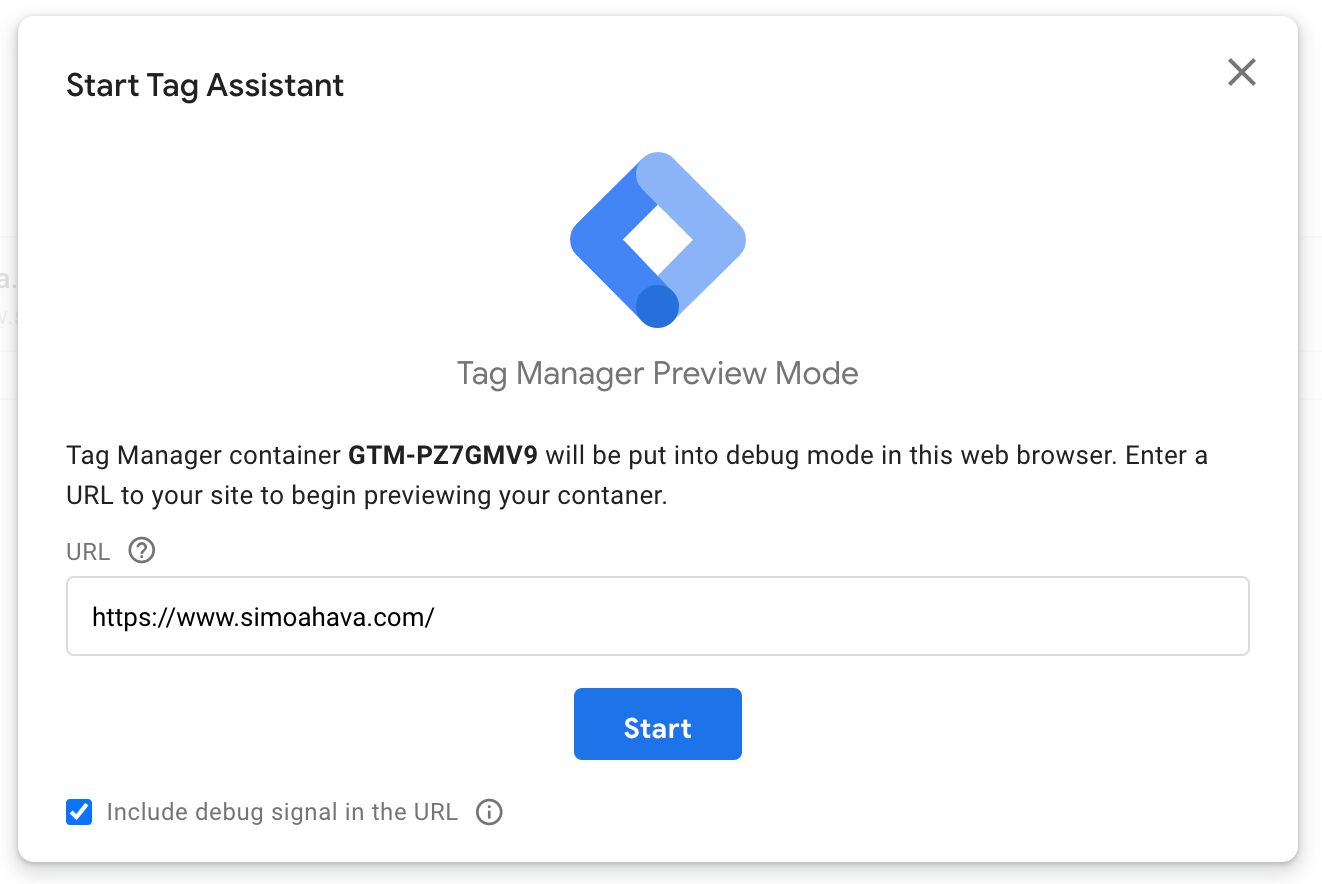
Google recommends using the preview/debug process to verify that your tags behave as expected before publishing.
Now perform the action you're tracking.
For example:
- Open your website.
- Click the phone number.
- Check the GTM preview window.
- Look for the click event.
- Check whether your trigger fired.
- Check whether the GA4 event tag fired.
If the tag didn't fire, inspect the trigger conditions.
This debugging step can save you from publishing broken conversion tracking.
Check Events in Google Analytics 4
After the tag fires, open Google Analytics 4.
Use:
Reports / Realtime
and, when debugging, use:
Admin → DebugView
Google recommends Realtime and DebugView for checking events as they are received.
Don't panic if everything doesn't appear instantly in every standard GA4 report. Some reports and processed data can take longer to update.
Publish Your GTM Container
Once you've tested everything:
Submit → Publish and Create Version
Give the version a meaningful name.
For example:
Added phone, WhatsApp and email tracking
A good naming system becomes extremely helpful when you have dozens of tags.
Google Tag Manager provides version history so you can review changes made to the container.
Common Google Tag Manager Mistakes
Creating one giant trigger for everything
It's usually easier to troubleshoot separate events when important actions have clearly defined triggers.
For example:
- Phone Click
- WhatsApp Click
- Email Click
- Book Call Click
- Form Submit
should be clearly identifiable.
Tracking clicks instead of actual conversions
A click on "Submit" doesn't necessarily mean a form was successfully submitted.
Whenever possible, track the actual completion.
Publishing without testing
Always use GTM Preview and Tag Assistant before publishing.
Duplicate tracking
If GA4 is installed through multiple methods, you may accidentally send duplicate events.
Check whether GA4 is already installed directly in your website code, through a plugin, or through another tracking platform before adding another implementation.
Poor naming conventions
Avoid names such as:
Tag 1
New Tag
Test
Use descriptive names such as:
GA4 - Phone Click
GA4 - WhatsApp Click
GA4 - Contact Form Submit
Google Ads - Lead
A clean naming structure makes future troubleshooting much easier.
Recommended GTM Structure for a Lead Generation Website
A simple structure could look like this:
| Tracking Action | Event Name | Trigger |
|---|---|---|
| Phone click | phone_click |
Click URL contains tel: |
| WhatsApp click | whatsapp_click |
Click URL contains WhatsApp URL |
| Email click | email_click |
Click URL contains mailto: |
| Book call | book_call_click |
Booking link click |
| Form success | generate_lead |
Successful form submission |
| Thank-you page | lead_thank_you |
Page view |
| CTA click | cta_click |
Specific button/link click |
This gives you a useful foundation without turning your GTM container into a collection of unnecessary tags.
Google Tag Manager and Performance Marketing
Good tracking becomes even more important when you're spending money on advertising.
Google Ads, Meta Ads and other advertising platforms need reliable conversion signals to understand which users and campaigns are producing valuable actions.
For example, imagine you spend ₹1,000 per day on Google Ads.
Your reports show 50 clicks.
That's useful, but it doesn't answer the question that matters most:
How many of those clicks generated real business opportunities?
With proper tracking, you can start connecting:
Ad → Landing Page → User Action → Lead → Business Outcome
That makes optimization much more meaningful.
If you're working on paid acquisition, you can also explore our Google Ads agency services, Meta Ads services, and SEO services.
Final Thoughts
Google Tag Manager can look complicated at first, but you don't need to understand every advanced feature to start using it effectively.
Start with the basics:
Tags tell GTM what to send.
Triggers tell GTM when to send it.
Variables provide the information needed to make those decisions.
Then build your tracking around meaningful business actions.
For a lead-generation website, start with phone clicks, WhatsApp clicks, email clicks, booking actions and successful form submissions. Test every tag in Preview mode before publishing, and regularly check your events in GA4.
Once the basic setup is working, you can move into more advanced tracking such as data layer implementations, enhanced conversions, Google Ads conversion tracking, cross-domain measurement and server-side tagging.
If you're interested in learning more about conversion measurement, you can also read our related guides on Google Ads conversion tracking, and Google Ads campaign structure.
The goal isn't to track everything.
The goal is to track the actions that help you make better marketing decisions.