Google Ads
How to Track Conversions in Google Ads (Complete Setup Guide)

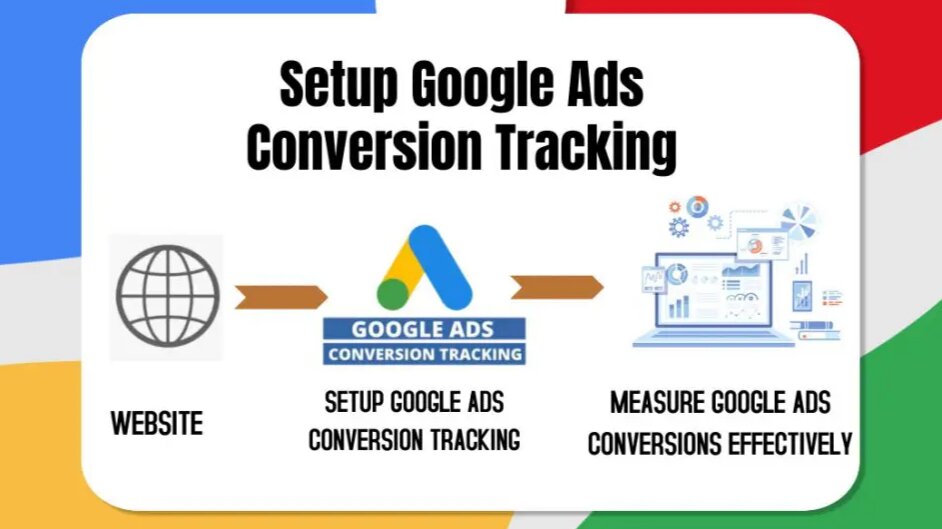
Category: Google Ads
How to Track Conversions in Google Ads (Complete Setup Guide)
Tracking conversions in Google Ads is one of the most important steps for running profitable PPC campaigns. Without proper conversion tracking, you won’t know which campaigns, keywords, or ads are generating actual business results.
Whether you run an ecommerce store, local business, SaaS platform, or lead generation company, conversion tracking helps you measure ROI accurately and optimize campaigns for better performance.
In this guide, you’ll learn:
- What conversion tracking is
- Why it matters
- Different types of conversions
- How to set up conversion tracking using Google Tag Manager
- How to track purchases, leads, and phone calls
- Common tracking mistakes
- Advanced conversion tracking tips
If you want better campaign performance and smarter optimization, this guide will help you build a strong conversion tracking setup.
What is Conversion Tracking in Google Ads?
Conversion tracking in Google Ads allows advertisers to measure actions users take after clicking or interacting with an ad.
A conversion can include:
- Product purchases
- Contact form submissions
- Phone calls
- Newsletter signups
- WhatsApp clicks
- App installs
- Booking requests
For example, if someone clicks your ad and fills out a lead form, Google Ads records that action as a conversion.
This helps businesses understand which campaigns are driving actual revenue and leads instead of focusing only on clicks or impressions.
If you're new to PPC optimization, check out our Google Ads Management Services to understand how strategic campaign management improves ROAS.
Why Conversion Tracking is Important
Many advertisers focus only on traffic, but traffic alone doesn’t generate revenue. Conversion tracking helps businesses make data-driven decisions.
Better Budget Allocation
You can identify which campaigns and keywords are generating profitable results and allocate more budget toward them.
Improved Smart Bidding
Google Ads bidding strategies like:
- Maximize Conversions
- Target CPA
- Target ROAS
depend heavily on accurate conversion data.
Understand Customer Behavior
Conversion tracking helps you analyze:
- Best-performing keywords
- High-converting landing pages
- Device performance
- Audience behavior
Accurate ROI Measurement
You can measure:
- Cost per lead
- Cost per acquisition
- Return on ad spend
- Total revenue generated
If you're struggling with high advertising costs, read our guide on How to Reduce Google Ads CPC Without Losing Conversions.
Types of Google Ads Conversions
Google Ads supports different conversion types depending on your business goals.
Website Conversions
These include actions completed on your website such as:
- Purchases
- Form submissions
- Downloads
- Signups
- Checkout completions
Phone Call Conversions
Track calls generated through:
- Call ads
- Call assets
- Website phone numbers
App Conversions
Used for tracking app installs and in-app actions.
Offline Conversions
Useful for businesses that close deals offline after generating online leads.
GA4 Imported Conversions
You can import Google Analytics 4 events directly into Google Ads.
Things You Need Before Setup
Before setting up conversion tracking, ensure you have:
- Google Ads account access
- Google Tag Manager installed
- Google Analytics 4 configured
- Website backend access
- Clearly defined conversion goals
If GTM is not installed yet, read our Google Tag Manager Setup Guide before proceeding.
How to Set Up Google Ads Conversion Tracking Using GTM
Google Tag Manager is the most flexible and recommended method for implementing conversion tracking.
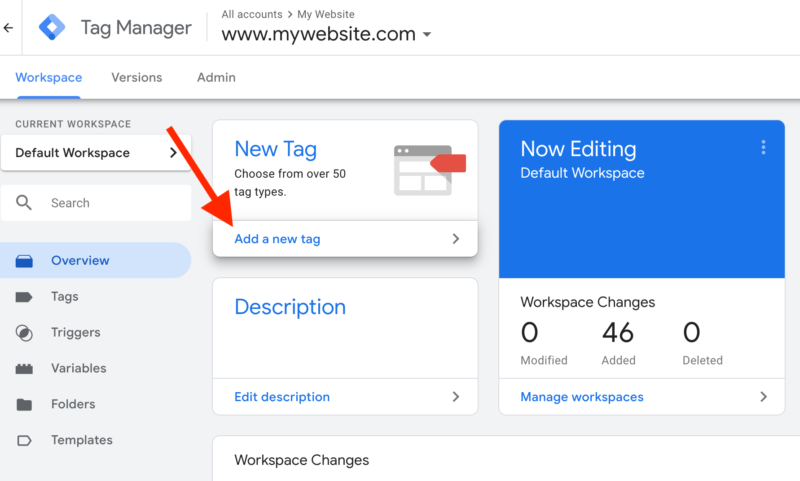
Step 1: Create a Conversion Action in Google Ads
Navigate to:
Google Ads → Goals → Conversions → New Conversion Action
Choose:
Website
Enter your website URL.
Google may automatically detect recommended conversion events on your website.
Examples include:
- Purchase
- Add to Cart
- Begin Checkout
- Lead Form Submission
Step 2: Configure Conversion Settings
Conversion Name
Use descriptive names such as:
- Purchase
- Contact Form Lead
- Book Consultation
- Checkout Completed
Conversion Value
Choose:
- Same value for every conversion
- Different values for dynamic ecommerce purchases
For ecommerce businesses, dynamic values are strongly recommended.
Count Setting
- One → Best for lead generation
- Every → Best for ecommerce purchases
Attribution Model
Recommended option:
- Data-Driven Attribution
This helps Google distribute conversion credit more accurately across touchpoints.
Step 3: Install Conversion Tag in GTM
After creating the conversion action, Google Ads provides:
- Conversion ID
- Conversion Label
Copy both values.
Now open Google Tag Manager.
Create a New Tag
Choose:
Google Ads Conversion Tracking
Paste the:
- Conversion ID
- Conversion Label
Step 4: Configure Trigger
Choose when the conversion should fire.
Thank You Page Trigger
Trigger fires when URL contains:
/thank-you
Form Submission Trigger
Use GTM form submission events.
Purchase Trigger
Use ecommerce purchase events from GA4 data layer.
Button Click Trigger
Track clicks on:
- Call buttons
- WhatsApp buttons
- Book Now buttons
For advanced event tracking implementation, explore our GA4 Setup Services.
Step 5: Test Conversion Tracking
Before publishing your GTM container, always test everything properly.
Use:
- GTM Preview Mode
- Google Tag Assistant
- GA4 DebugView
- Google Ads Diagnostics
Complete a test conversion and verify that the conversion tag fires correctly.
Step 6: Publish GTM Container
Once testing is successful:
- Submit your changes
- Publish the GTM container
Your conversion tracking setup is now live.
How to Track Ecommerce Purchases in Google Ads
Ecommerce tracking requires dynamic transaction values for accurate ROAS reporting.
This setup is commonly used with:
- Shopify
- WooCommerce
- Magento
- Custom ecommerce stores
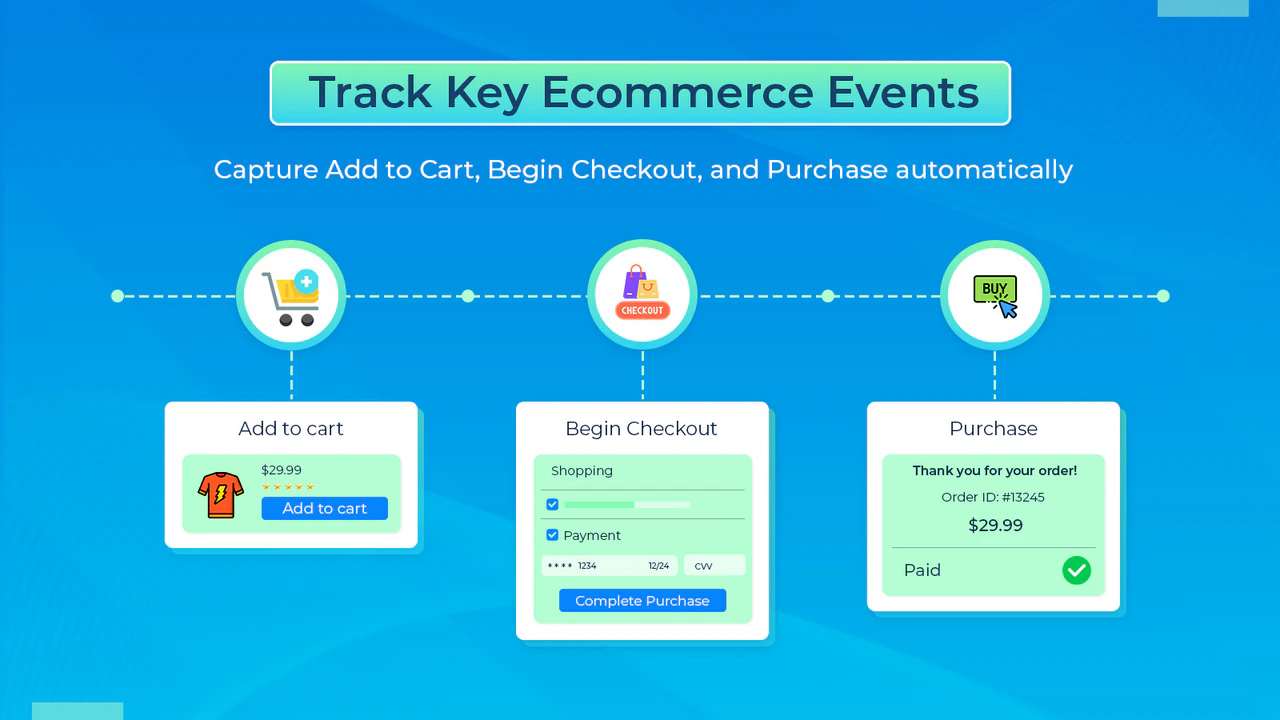
Recommended Ecommerce Tracking Setup
Use GA4 Ecommerce Events
Track standard ecommerce events like:
- view_item
- add_to_cart
- begin_checkout
- purchase
Import Purchase Event into Google Ads
Go to:
Google Ads → Conversions → Import → Google Analytics 4 Properties
Then select:
- purchase event
This setup is easier to maintain and improves reporting accuracy.
Common Reasons Purchase Tracking Fails
Many advertisers notice purchases getting attributed to “Add to Cart” instead of actual purchases.
Common reasons include:
- Purchase conversion set as secondary
- Duplicate tracking tags
- Incorrect event mapping
- Missing transaction IDs
- “Include in Conversions” disabled
Always ensure:
- Purchase conversion is primary
- Dynamic revenue values are passed correctly
- Purchase events fire only once
How to Track Lead Form Submissions
Lead generation businesses rely heavily on form tracking.
Examples include:
- Agencies
- Real estate businesses
- SaaS companies
- Consultants
- Educational institutions
Best Lead Tracking Methods
Thank You Page Tracking
Most reliable setup.
Redirect users to:
/thank-you
Track the page view as a conversion.
AJAX Form Tracking
Needed for forms that do not reload the page.
Use:
- Custom GTM events
- Form listeners
- Element visibility triggers
Button Click Tracking
Can work but is generally less reliable than thank-you page tracking.
How to Track Phone Call Conversions
Phone calls are critical for local businesses and service providers.
Google Ads supports:
- Calls from ads
- Calls from website
- Click-to-call tracking
Setup Process
Enable Call Reporting
Inside campaign settings:
- Turn on call reporting
Add Call Assets
Use:
- Call assets
- Call-only ads
Install Website Call Tracking
Google replaces your number with a forwarding number to track calls accurately.
You can define:
- Minimum call duration
- Conversion values
If you run local campaigns, check our Local PPC Advertising Guide.
Google Ads vs GA4 Conversion Tracking
Many advertisers get confused between Google Ads conversions and GA4 conversions.
| Feature | Google Ads | GA4 |
|---|---|---|
| Primary Purpose | Ad Optimization | Analytics |
| Attribution | Ads-focused | Cross-channel |
| Best For | Smart bidding | User analysis |
| Data Source | Ads tags | Events |
Recommended Setup
Best practice:
- Track events in GA4
- Import important conversions into Google Ads
This creates a centralized tracking system.
Common Google Ads Conversion Tracking Mistakes
Even experienced marketers make tracking mistakes.
Duplicate Tracking
Occurs when:
- GA4 imports
- Google Ads tags
- GTM events
all track the same action.
This inflates conversion numbers.
Tracking Button Clicks Instead of Actual Leads
A button click does not always mean a successful form submission.
Track completed actions whenever possible.
Incorrect Attribution Settings
Using outdated attribution models can reduce optimization accuracy.
Recommended:
- Data-Driven Attribution
Not Passing Dynamic Revenue Values
Static conversion values produce inaccurate ROAS data for ecommerce businesses.
Always pass real transaction values dynamically.
Advanced Conversion Tracking Tips
Once your basic setup works properly, implement advanced tracking solutions.
Enhanced Conversions
Enhanced conversions improve measurement accuracy using hashed first-party customer data.
Benefits include:
- Better attribution
- Improved conversion accuracy
- Better smart bidding performance
Offline Conversion Imports
Useful for businesses that close leads offline.
You can import:
- Qualified leads
- Closed deals
- Revenue values
Server-Side Tracking
Server-side tracking improves reliability after browser privacy updates and cookie restrictions.
Benefits:
- Reduced data loss
- Improved attribution
- Better tracking accuracy
To future-proof your analytics setup, read our Server-Side Tracking Guide.
How to Verify Conversion Tracking
Use the following tools:
Google Tag Assistant
Checks whether tags fire properly.
GTM Preview Mode
Shows real-time trigger activity.
GA4 DebugView
Verifies event collection.
Google Ads Diagnostics
Displays tracking status directly inside Google Ads.
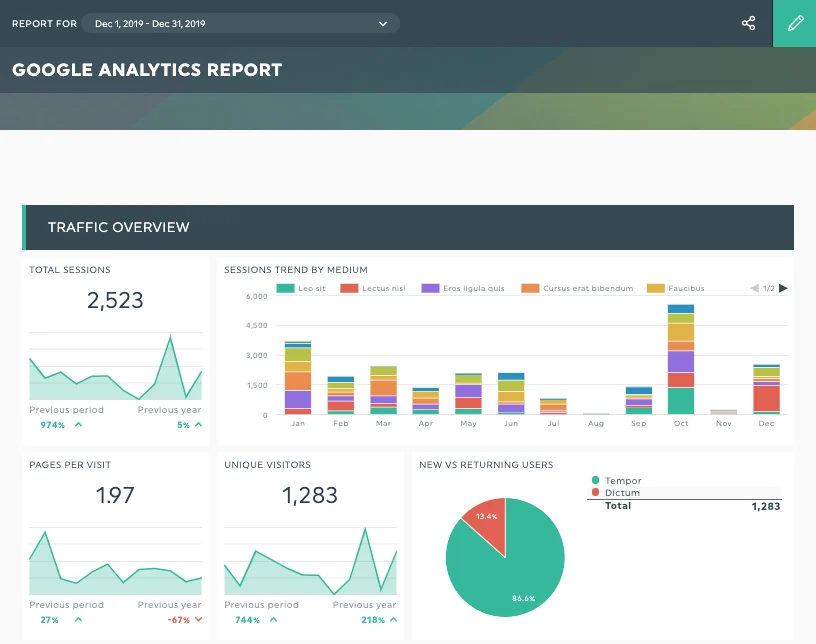
Best Practices for Accurate Tracking
Follow these best practices for reliable conversion data.
Use Google Tag Manager
Avoid hardcoded scripts whenever possible.
Keep Naming Consistent
Use standardized conversion naming conventions.
Separate Primary and Secondary Conversions
Primary Conversions
- Purchases
- Qualified Leads
Secondary Conversions
- Add to Cart
- Page Views
- Button Clicks
Audit Tracking Regularly
Check monthly for:
- Duplicate events
- Missing revenue
- Broken triggers
- Attribution issues
Final Thoughts
Google Ads conversion tracking is the foundation of successful PPC campaigns. Without accurate tracking, businesses cannot optimize campaigns effectively or measure ROI properly.
Whether you run ecommerce campaigns, local service ads, or lead generation campaigns, proper conversion tracking helps improve:
- ROAS
- Lead quality
- Smart bidding performance
- Budget allocation
Start with:
- Google Tag Manager
- GA4 event tracking
- Google Ads conversion actions
Then gradually implement advanced tracking methods like enhanced conversions and server-side tracking.
If you need professional help setting up conversion tracking, explore our Google Ads Services or visit the Scale With Clicks.
Frequently Asked Questions
What is the best way to track conversions in Google Ads?
Using Google Tag Manager with GA4 event tracking and importing conversions into Google Ads is the most recommended method.
Why are my Google Ads conversions not showing?
Possible reasons include:
- Incorrect triggers
- Missing tags
- Delayed reporting
- Secondary conversion settings
- Consent mode restrictions
Should I use GA4 imports or Google Ads tags?
Best practice is:
- Track events in GA4
- Import important conversions into Google Ads
Can Google Ads track phone calls?
Yes. Google Ads supports:
- Call ads
- Website calls
- Call assets
How long does conversion tracking take to work?
Usually:
- Tag detection takes a few hours
- Conversion reporting takes 3–24 hours
- Smart bidding optimization improves within 1–2 weeks
## FAQs Schema

```json
{
  "@context": "https://schema.org",
  "@type": "FAQPage",
  "mainEntity": [
    {
      "@type": "Question",
      "name": "What is the best way to track conversions in Google Ads?",
      "acceptedAnswer": {
        "@type": "Answer",
        "text": "The best way to track conversions in Google Ads is by using Google Tag Manager with GA4 event tracking and importing important conversions into Google Ads."
      }
    },
    {
      "@type": "Question",
      "name": "Why are my Google Ads conversions not showing?",
      "acceptedAnswer": {
        "@type": "Answer",
        "text": "Google Ads conversions may not show because of incorrect triggers, missing tags, delayed reporting, consent mode restrictions, or conversion actions being set as secondary."
      }
    },
    {
      "@type": "Question",
      "name": "Should I use GA4 imports or Google Ads tags?",
      "acceptedAnswer": {
        "@type": "Answer",
        "text": "The recommended setup is to track events in GA4 and import important conversions into Google Ads for better reporting and optimization."
      }
    },
    {
      "@type": "Question",
      "name": "Can Google Ads track phone calls?",
      "acceptedAnswer": {
        "@type": "Answer",
        "text": "Yes, Google Ads can track phone calls from call ads, website calls, and call assets using Google forwarding numbers."
      }
    },
    {
      "@type": "Question",
      "name": "How long does Google Ads conversion tracking take to work?",
      "acceptedAnswer": {
        "@type": "Answer",
        "text": "Google Ads conversion tracking usually takes a few hours for tag detection and 3–24 hours for conversion reporting. Smart bidding optimization may take 1–2 weeks."
      }
    }
  ]
}