Tracking
GA4 Events Explained - Complete Guide to Events in Google Analytics

Category: Tracking
GA4 Events Explained: Complete Guide to Events in Google Analytics
If you want to understand what visitors actually do on your website, pageviews alone are not enough.
Someone can visit your website, click a button, download a file, submit a form, watch a video, add a product to their cart, or complete a purchase. These interactions are what make website analytics useful, and in Google Analytics 4 (GA4), they are primarily measured through events.
GA4 uses an event-based measurement model, which is different from the older Universal Analytics approach. Instead of looking only at sessions and pageviews, GA4 lets you measure individual actions and attach additional information to those actions.
For businesses running Google Ads, SEO, ecommerce, or lead generation campaigns, properly configured GA4 event tracking can make a major difference in understanding which marketing activities are actually producing results.
In this guide, we'll explain GA4 events, event types, event parameters, custom events, key events, Google Tag Manager implementation, DebugView, and the most common tracking mistakes.
What Are GA4 Events?
A GA4 event is an interaction or occurrence that you want Google Analytics to record.
For example, when someone:
- Views a page
- Clicks an external link
- Scrolls through a page
- Downloads a file
- Starts a form
- Submits a form
- Searches your website
- Adds a product to a cart
- Begins checkout
- Completes a purchase
GA4 can record these actions as events.
Google describes an event as a way to measure a specific interaction or occurrence on a website or app. Depending on the event, GA4 can also collect additional information called event parameters.
For example, an event might be:
form_submit
And additional parameters could tell you:
form_name = contact_form
This gives you much more information than simply knowing that "something happened."
Why Are GA4 Events Important?
Imagine you have 10,000 website visitors in a month.
That number sounds useful, but it doesn't tell you much about business performance.
What if you also knew that:
- 700 users clicked your contact button
- 180 started filling out a form
- 95 submitted a form
- 35 clicked your phone number
- 20 booked a consultation
- 12 became customers
Now you can start understanding the customer journey.
This is where Google Analytics event tracking becomes valuable.
Events can help you:
- Understand user behavior
- Measure engagement
- Track lead generation
- Track ecommerce activity
- Analyze button and link clicks
- Identify high-performing pages
- Build audiences
- Measure important business actions
- Improve Google Ads optimization
- Connect website behavior with marketing performance
If you're setting up GA4 for the first time, our GA4 Setup Guide for Beginners covers the complete installation and verification process.
The 4 Types of GA4 Events
One of the easiest ways to understand GA4 is to divide events into four categories:
- Automatically collected events
- Enhanced measurement events
- Recommended events
- Custom events
Each serves a different purpose.
1. Automatically Collected Events
These are events GA4 collects automatically when the Google tag or appropriate SDK is installed.
Examples include:
page_viewfirst_visitsession_startuser_engagement
You don't normally need to create these manually.
For example, when a user visits a page, GA4 can automatically record a page_view event.
This is one reason installing GA4 correctly should be the first step before building a complicated tracking system.
Google also automatically includes useful information with events, such as page location, page title, language, and referrer information for web streams.
2. Enhanced Measurement Events
Enhanced Measurement allows GA4 to automatically collect additional interactions without requiring you to manually create every event.
Depending on your configuration, these can include interactions such as:
- Scrolls
- Outbound clicks
- Site search
- Video engagement
- File downloads
- Form interactions
This can save a significant amount of implementation time.
For example, if you want to know how many users downloaded a PDF from your website, enhanced measurement may already provide the required event instead of requiring a custom implementation.
However, don't assume every interaction is tracked exactly the way your business needs. Always verify the actual event data in GA4.
3. Recommended Events
Recommended events are events that Google has predefined for common business activities.
You implement them yourself, but Google provides standard event names and parameters.
Some examples include:
generate_leadsign_uploginsearchselect_contentsharepurchaserefund
For lead generation websites, generate_lead can be particularly useful when a visitor successfully submits a lead form.
For ecommerce websites, events such as add_to_cart, begin_checkout, and purchase provide a much better structure for understanding the buying journey.
Google recommends using predefined event names when they fit your use case because they can provide better compatibility with reporting and other Google Analytics features.
4. Custom Events
Sometimes there isn't an existing event that accurately describes the interaction you want to measure.
That's when GA4 custom events become useful.
For example, suppose you have a button on your website called "Book a Strategy Call."
You might create an event such as:
book_call
You could then add parameters such as:
button_location = homepage
or:
button_location = services_page
Custom events give you flexibility, but they should not be your first choice when an existing recommended or automatically collected event already fits.
Google specifically recommends checking whether an existing event can be used before creating a custom event.
What Are GA4 Event Parameters?
Events tell you what happened.
Event parameters tell you more about what happened.
For example:
Event:
generate_lead
Parameters:
form_name = contact_formservice = Google Adspage_location = /services/google-ads-agency
This additional information allows you to break down your event data.
Another example:
Event:
file_download
Parameters:
file_name = google-ads-audit.pdffile_type = pdf
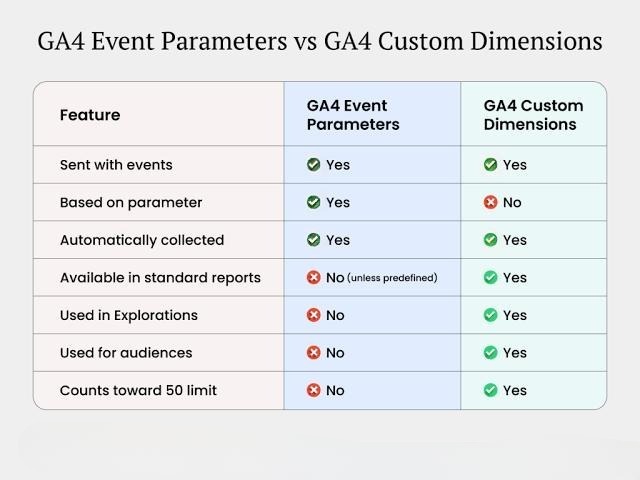
Google describes event parameters as additional information about a user interaction. They can then be used through dimensions and metrics for deeper analysis.
Event Name vs Event Parameter
This is a common source of confusion for beginners.
Think about it this way:
Event name = the action
Event parameter = additional information about the action
For example:
cta_click
could have:
button_text = Get Free Audit
page_location = /
button_position = hero
You don't need to create a separate event for every possible button.
Instead, a properly designed event structure can use parameters to provide additional context.
This keeps your tracking system cleaner and easier to analyze.
GA4 Event Naming Best Practices
Event naming is more important than it may initially appear.
GA4 event names are case-sensitive, so:
form_submit
and
Form_Submit
are treated differently.
Google also has rules around event names, including restrictions on spaces, reserved names, and prefixes. Event names should start with a letter and use letters, numbers, and underscores.
A simple naming structure is:
generate_lead
book_call
whatsapp_click
phone_click
newsletter_signup
download_whitepaper
Try to keep names:
- Descriptive
- Consistent
- Lowercase
- Easy to understand
- Reusable across your website
Avoid creating random names such as:
button1
click123
newleadtest
These names may make sense today but become confusing six months later when you're reviewing your analytics.
How to Set Up GA4 Events Using Google Tag Manager
For many websites, Google Tag Manager (GTM) is one of the easiest ways to manage event tracking without repeatedly changing website code.
A typical setup includes:
Website → Google Tag Manager → GA4 → Event
For example, suppose you want to track a phone number click.
You could create:
Event name:
phone_click
Trigger:
When a user clicks a telephone link.
GA4 Event Tag:
Send phone_click to your GA4 property.
The exact implementation depends on your website structure and how the phone link is coded.
If you're new to GTM, our Google Tag Manager Setup & Tracking Guide explains how GTM works and how to use it for website tracking.
How to Test GA4 Events
Never assume an event is working simply because the tag was published.
Always test it.
Step 1: Open Google Tag Manager Preview
Open your GTM container and launch Preview mode.
Step 2: Visit Your Website
Open the page where the event should happen.
Step 3: Perform the Action
For example:
- Click the phone number
- Submit the form
- Click WhatsApp
- Download a PDF
- Add an item to cart
Step 4: Check GTM
Confirm that the correct trigger fired.
Step 5: Check GA4 DebugView
In GA4, open Admin → DebugView and look for the event.
Google recommends DebugView and Realtime for verifying event collection.
Don't stop at checking whether the event name appears. Also verify that the expected parameters are being passed correctly.
What Are GA4 Key Events?
Not every event is a business conversion.
A page scroll is an event.
A PDF download is an event.
A purchase is also an event.
But a purchase is much more important to an ecommerce business than a simple scroll.
GA4 allows important events to be marked as key events.
For example, a lead-generation business might consider these key events:
generate_leadbook_callphone_click
An ecommerce business might prioritize:
purchasebegin_checkoutadd_to_cart
The important point is to identify actions that actually matter to your business rather than marking every interaction as a key event.
If you're connecting GA4 with Google Ads, accurate event and key-event tracking becomes even more important. You can also read our Google Ads Conversion Tracking Guide for a deeper look at advertising conversion tracking.
GA4 Events for Lead Generation Websites
For a service business, your event tracking setup could look something like this:
| User Action | GA4 Event |
|---|---|
| Contact form submitted | generate_lead |
| Phone number clicked | phone_click |
| WhatsApp button clicked | whatsapp_click |
| Consultation booked | book_call |
| Audit downloaded | file_download |
| Newsletter signup | sign_up |
The key is not to track everything just because you can.
Focus on actions that help answer business questions.
For example:
Which service page generates the most leads?
You could pass the page or service name as an event parameter.
Which CTA gets the most engagement?
Track the button location or CTA name.
Which traffic source produces the best leads?
Combine event data with acquisition information.
This turns GA4 from a simple traffic-reporting tool into a useful measurement system.
GA4 Events for Ecommerce
Ecommerce websites need a more detailed event structure.
A typical customer journey might include:
view_item
↓
add_to_cart
↓
begin_checkout
↓
purchase
Each event provides a different piece of information about the customer's journey.
For example, if you have thousands of product views but very few add_to_cart events, you may have a product-page or offer problem.
If many users add products to the cart but don't complete checkout, the problem could be related to shipping costs, payment options, checkout usability, or trust.
This is why ecommerce event tracking should be designed around the complete customer journey rather than only tracking purchases.
Common GA4 Event Tracking Mistakes
1. Creating Too Many Custom Events
Don't create a new custom event when an existing GA4 event already does the job.
This makes reporting unnecessarily complicated.
2. Using Inconsistent Names
Don't mix:
form_submit
formSubmission
Form_Submitted
and
lead_form
for essentially the same action.
Choose one naming structure and stick to it.
3. Tracking Clicks Instead of Completed Actions
A button click doesn't always mean a conversion happened.
Someone can click "Submit" and encounter an error.
Whenever possible, track the completed business action rather than only the button click.
4. Not Testing Parameters
An event can appear correctly while its parameters are missing or incorrect.
Always check the complete event payload during testing.
5. Duplicate Tracking
Duplicate GA4 tags, multiple GTM containers, website code plus GTM, or overlapping tracking implementations can result in inflated numbers.
If GA4 says you received 200 leads but your CRM only contains 100, investigate your tracking before making marketing decisions.
6. Marking Everything as a Key Event
If every interaction is treated as a key event, your important actions lose their meaning.
Keep your key events focused on actions that matter to the business.
How GA4 Events Work With Google Ads
GA4 and Google Ads serve different purposes, but they work well together.
GA4 helps you understand:
- User behavior
- Website engagement
- Traffic sources
- Events
- Customer journeys
Google Ads focuses more heavily on:
- Campaign performance
- Ad interactions
- Conversion optimization
- Bidding
- Advertising ROI
When the two platforms are configured correctly, important GA4 events can become part of your broader advertising measurement strategy.
For businesses investing heavily in paid search, accurate tracking is essential before scaling campaigns. Our Google Ads Management Services can help businesses combine campaign management with proper measurement and optimization.
How to Create Custom Dimensions From Event Parameters
Sometimes collecting an event parameter isn't enough.
Suppose you collect:
service_name = Google Ads
You may want to analyze that parameter in your GA4 reports.
That's where an event-scoped custom dimension can be useful.
Google recommends creating a custom dimension for categorical information collected through custom event parameters, provided a predefined dimension doesn't already exist.
For numerical information, a custom metric may be more appropriate.
This distinction is important because collecting data and making that data easily reportable are two separate parts of analytics implementation.
A Practical GA4 Event Tracking Structure
For a typical lead-generation website, a clean setup might look like this:
Automatically collected
page_viewsession_startuser_engagement
Enhanced measurement
scrollclickfile_download
Recommended
generate_leadsearchsign_up
Custom
phone_clickwhatsapp_clickbook_call
Key events
generate_leadbook_call
This isn't a universal setup. Your event architecture should be based on the actions that matter to your particular business.
Final Thoughts
GA4 events are the foundation of meaningful Google Analytics 4 tracking.
Instead of simply asking how many people visited your website, you can ask much better questions:
What did visitors do?
Which pages generate engagement?
Which actions lead to enquiries?
Which products are added to carts?
Where are users dropping out of the funnel?
Which marketing channels generate valuable actions?
The most effective GA4 setup isn't necessarily the one with the largest number of events. It's the one that captures the right events with consistent names, useful parameters, and accurate implementation.
Start with automatically collected and enhanced measurement events. Use recommended events whenever they fit your use case, and create custom events only when you need something more specific.
Most importantly, test everything using GTM Preview, GA4 Realtime, and DebugView before relying on the data for marketing decisions.
If your GA4 setup, Google Tag Manager implementation, or advertising conversion tracking needs a proper audit, explore our Conversion Tracking Services. You can also visit Scale With Clicks to learn more about our performance marketing and tracking services.
Accurate tracking doesn't just give you more data. It gives you better information to make better marketing decisions.
Frequently Asked Questions About GA4 Events
What are events in GA4?
GA4 events are user interactions or occurrences that Google Analytics records on a website or app. Examples include page views, button clicks, form submissions, file downloads, purchases, and video engagement. Events help you understand what users actually do after they arrive on your website.
What are the different types of GA4 events?
There are four main types of GA4 events: automatically collected events, enhanced measurement events, recommended events, and custom events. Each type serves a different purpose, from basic website activity to specific business interactions.
What is the difference between a GA4 event and a key event?
An event represents an interaction that has been recorded by GA4. A key event is an important event that you have identified as being particularly valuable to your business. For example, a form submission may be an event, while a successful lead submission may be marked as a key event.
What are GA4 event parameters?
Event parameters provide additional information about an event. For example, a generate_lead event could include parameters such as form_name, service_name, or page_location. Parameters make event data more useful for analysis and reporting.
Can I create custom events in GA4?
Yes. GA4 allows you to create custom events when an existing automatically collected, enhanced measurement, or recommended event doesn't meet your tracking requirements. Custom events are useful for specific interactions such as whatsapp_click, book_call, or other business-specific actions.
How do I track button clicks in GA4?
Button clicks can be tracked using Google Tag Manager, GA4 event tags, and appropriate click triggers. For example, a phone button could send a phone_click event to GA4. The exact setup depends on the website's HTML structure and how the button is implemented.
How can I check if a GA4 event is working?
You can test GA4 events using Google Tag Manager Preview mode, GA4 Realtime reports, and DebugView. Perform the action on your website and confirm that the expected event appears with the correct parameters.
Why is my GA4 event not showing?
A GA4 event may not appear because the trigger isn't firing, the GA4 tag is incorrectly configured, the measurement ID is wrong, consent settings are preventing collection, or the event hasn't been implemented correctly. Use GTM Preview and GA4 DebugView to identify where the problem occurs.
Should every GA4 event be marked as a key event?
No. Only important business actions should normally be marked as key events. Marking every interaction as a key event can make your reports less useful and make it harder to identify the actions that genuinely matter to your business.
Can GA4 events be used for Google Ads conversion tracking?
Yes. Properly configured GA4 events and key events can be used as part of Google Ads measurement and conversion strategies. However, the setup should be tested carefully to avoid duplicate conversions or inaccurate conversion values.
How many GA4 events should a website have?
There is no ideal number of GA4 events for every website. A good tracking setup focuses on meaningful interactions rather than collecting as many events as possible. A lead-generation website may need only a handful of important events, while a large ecommerce website may require a much more detailed event structure.
Are GA4 events case-sensitive?
Yes. GA4 event names are case-sensitive. For example, generate_lead and Generate_Lead should be treated as different event names. For consistency, it's generally better to use a clear naming convention and apply it across the entire tracking setup.
Is Google Tag Manager required for GA4 event tracking?
No. Google Tag Manager is not mandatory for every GA4 implementation. Some events can be configured directly through GA4 or website code. However, GTM can make event tracking much easier to manage, especially when a website requires multiple tags, triggers, and marketing platforms.